Manage or Change Your Multi-Factor Authentication Methods
MGA students (new, continuing, dual enrollment, auditing, etc) and employees (full-time and part-time faculty and staff) can manage the authentication methods used to verify their identity when signing in to Microsoft 365 and other University services.
You can add a new authentication method, update an existing method, or remove a method you no longer use. The authentication options available to you are determined by MGA's Microsoft 365 security settings.
Add or Change an Authentication Method
- Go to Microsoft Security Info and sign in using your MGA account.
- On the Security Info page, review the authentication methods currently associated with your account.
- To add another method, select Add sign-in method.
- Select the authentication method you want to add and follow the on-screen instructions.
The methods available may vary depending on MGA's Microsoft 365 security settings.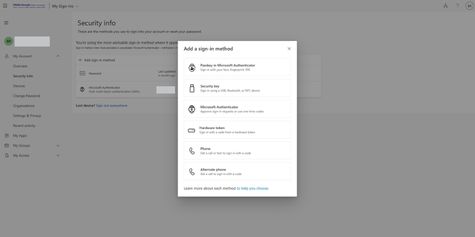
- Complete the verification process to confirm that the new method has been successfully added to your account.
Microsoft Authenticator
Microsoft Authenticator is the recommended authentication method for MGA accounts. The app can be used to securely approve sign-in requests and may provide additional options beyond receiving verification codes by text message.
Download Microsoft Authenticator (for iOS or Android)
Set Up More Than One Method
We strongly recommend registering more than one authentication method whenever additional options are available. Having a backup method can help you access your account if you replace or lose your phone, change your phone number, or cannot use your primary authentication method.
Before removing an old authentication method, add and verify your replacement method first.
Important: Never approve an authentication request that you did not initiate. If you receive an unexpected MFA request, deny the request and contact the appropriate MGA technology support resource.