New Student Login to Office 365
- Log in to https://login.microsoftonline.com/.
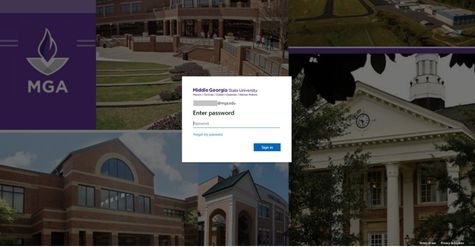
- Type in your current username (first.last#@mga.edu) and your password. Default email password is P#MMDDYY, your 6-digit birthday. You will be redirected to the MGA splash page.
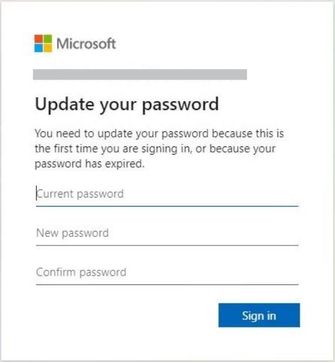
- You will then be redirected to the Update Password page. Change the password from the default password to a new password. Click "Submit." Log in using your new password.
- After changing your password from your default to your new one and hitting submit, you will be taken back to the MGA splash page. Type in your new password and click Sign in.
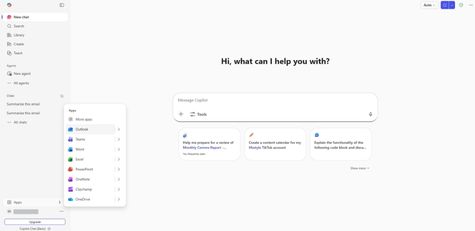
- You will be redirected to the Office 365 page. Click "Apps" above your name. Choose "Outlook" to open your MGA mailbox.
- On your first login you will be prompted to set your language and time zone. Once selected, click "Save."
- You will now be able to access your MGA mailbox.
⚠️ If a user is locked out or has forgotten their password, then the password reset process is the same as it has always been. Once you reset their password to the generic password assigned, you should then direct them to this same process that a new user or student would do.
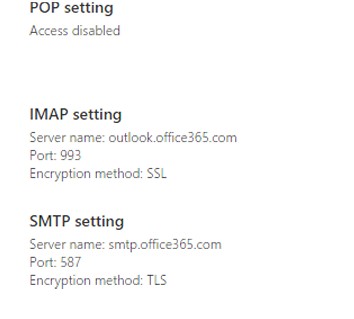
The direct link for a user to change a password is https://fs.mga.edu/adfs/portal/updatepassword. For external programs and software that you may be using, here are the IMAP and SMTP settings. We do not offer POP.