Multi-Factor Authentication
Multi-factor authentication (MFA) is required for all MGA students (new, continuing, dual enrollment, auditing, etc) and employees (full-time and part-time faculty and staff) who access Microsoft 365 services. MFA provides an additional layer of security for your MGA account and helps protect your personal information and University systems from unauthorized access.
After changing your initial MGA password, you will be prompted to set up MFA before continuing to your Microsoft 365 account.
With MFA, signing in requires two forms of verification: your MGA password and an additional method that confirms your identity. Microsoft Authenticator (iOS or Android ) is the recommended method, although other authentication methods may be available based on your account settings.
Set Up MFA
- Sign in to Microsoft 365 with your MGA account.
After entering your username and password and selecting Sign in, you will be prompted with a message indicating that additional information is required to secure your account.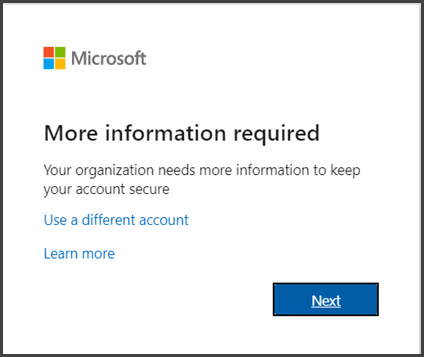
- Select Next to begin the MFA setup process.
-
Set up Microsoft Authenticator.
Microsoft Authenticator is the recommended authentication method. If the app is already installed on your mobile device, select Next and follow the on-screen instructions to connect your MGA account.
If you do not have Microsoft Authenticator installed, follow the provided link or instructions to download and install the app on your mobile device (iOS or Android). If another authentication method is available for your account, select I want to set up a different method and follow the prompts provided by Microsoft. -
Complete the verification process.
Follow the on-screen instructions to verify that your authentication method has been successfully connected to your MGA account.
After MFA Is Set Up
Once setup is complete, Microsoft 365 may ask you to verify your identity when you sign in. The verification request will depend on the authentication method you selected.
You can manage, add, or update your authentication methods later through your Microsoft account security settings.
Important: Never approve an MFA request that you did not initiate. An unexpected authentication request may indicate that someone else is attempting to access your account.